What this tool does
This is a device check for the minutes before a Zoom, Teams or Google Meet call, or for the moment someone says they cannot hear you. Turn the microphone on and its level shows at once as a bar and a dB figure. When the sound is too quiet, so loud that it distorts, or arrives as pure digital silence, the tool says so in words.
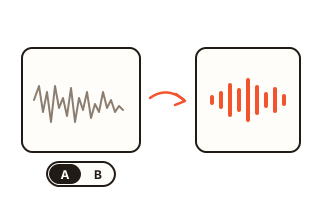
Pick 5, 10 or 30 seconds and record: the take plays back by itself as soon as it ends, so you hear what other people will hear. It is drawn as a waveform too, and you can keep it as a WAV file.
For speakers and headphones, play a chime on the left side only, the right side only or both, and run a sweep from low to high to hear how far the bass and treble go. The webcam shows its picture with the size the camera really sends and how many frames arrive each second.
How to use it
- Press Turn on microphone and choose Allow when the browser asks.
- Talk or clap and watch the bar move. If there is more than one microphone, choose the one to use.
- Press Start recording and talk until the time is up; the recording then plays back by itself.
- Press Left and then Right under the speakers and check the sound comes from that side. The webcam has its own Turn on camera button.
Reading the bar and the number
The bar runs from -60 to 0 dB (dBFS, decibels relative to full scale). Zero is the loudest sound a digital signal can hold, so a figure closer to 0 means a louder input. The tinted end of the bar is the top 6 dB, and the thin coral line holds the loudest point of the last one and a half seconds.
When something above -40 dB arrives within a second, the tool says sound is coming in; when samples reach full scale it warns that the sound is distorting; after six seconds below -50 dB it says hardly anything is arriving. The figure is the size of the digital signal the microphone sends, not the loudness of the room the way a sound level meter measures it.
Call-style processing on and off
Video call apps and browsers usually run echo cancellation, noise suppression and automatic gain on the microphone. This tool opens the microphone with all three off first, so you see and hear what the microphone itself picks up. Switch on Process like a call app and it opens again with all three on.
Record once each way to hear how far the call version differs from the raw sound. Automatic gain also moves the level by itself, so leave it off when you want to judge how loud the microphone really is.
When the microphone or camera will not open
If you did not press Allow, or pressed Block earlier, the site has to be allowed again in the browser's site settings. The tool recognises the device you are on (Windows, Mac, iPhone or Android) and names the setting to change there.
Another program that holds the microphone or camera, such as Zoom, Teams or Discord, can stop the browser from opening it; close that program and try again. If the bar never moves and the tool reports pure silence, look for a mute switch on the microphone or a microphone key on the laptop keyboard.
Left and right, and the webcam
Left sends a three-note chime (C, E, G) twice to the left channel only, Right to the right channel only. The speaker drawings light up on the side the sound actually leaves from, which makes swapped earbuds or a dead side easy to spot. Turn the volume down a little before the first press.
The webcam opens only when you press Turn on camera. You can ask for HD, Full HD or 4K and see the size the camera really delivers, plus the frames per second, to check it is not stuck at a low setting. Mirroring flips only the picture on this screen.
Your data
The microphone sound, the recording and the camera picture are used inside this page only and are never sent to a server. A recording disappears when you close the page unless you save it as WAV; this browser keeps only your settings, such as the chosen devices and the recording length.
Questions and answers
My recorded voice sounds strange. Is the microphone broken?
Usually not. The voice you hear while speaking includes sound carried through the bones of your head, so everyone's voice sounds a little unfamiliar on a recording. If it cuts out, crackles or sounds far away, try another microphone or a different distance and record again.
Why does my Bluetooth headset sound muffled once its microphone is on?
While their microphone is in use, most Bluetooth headsets switch to a hands-free connection made for calls, which lowers the sound quality. For clean sound, choose the laptop's or a wired microphone here and use the headset only for listening.
I do not see a list to choose the speakers.
Choosing the output device works in browsers such as Chrome and Edge, and the list appears after the microphone has been allowed once. Without it, change the default output device in your computer's sound settings and press the button again.
Does it work on a phone?
Yes: the level bar, record and play back, and the webcam all work in a phone browser. A phone's two speakers sit close together, so check left and right with earphones plugged in. Inside an app's own browser, such as KakaoTalk, the microphone may be blocked; open the page in Chrome or Safari instead.
Where does the recording go?
Nowhere. The page keeps it in the device's memory, and Save as WAV only writes it to a file on this device. Closing the page clears it from memory.