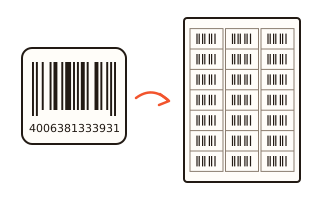
What this tool does
A barcode writes numbers and letters as thick and thin bars so that a scanner can read them in one pass. This generator makes 21 formats: EAN-13 and UPC-A for retail products, Code 128 for stock, membership cards and parcels, ITF-14 for shipping cartons, Code 39 for older equipment, and more. The preview updates as you type, and each barcode saves as a PNG picture or an SVG drawing.
The last digit of a product number is a check digit calculated from the others. Type all 13 digits and a wrong last digit is caught: you are told which digit it should be, with a button to fix it, so a mistyped number does not end up on hundreds of printed labels. Type the number exactly as you received it, check digit included — with only 12 digits the right check digit is added, but a digit copied wrongly cannot be caught.
Copy two columns from a spreadsheet, such as product name and number, and paste them in: the number column is found by itself and the name is printed above each barcode on the label. Pick a common A4 sheet (10, 14, 21, 24 or 65 labels) and, on a half-used sheet, choose the first empty label to start from.
How to use it
- Type numbers or text in “Values for the barcode”. For several barcodes, put one value per line or paste cells copied from a spreadsheet.
- Choose a format in “Barcode format”. Retail products use EAN-13 (UPC-A in the US and Canada); in-house stock, membership cards and parcel slips are fine with Code 128. Anything that was changed or cannot be drawn is explained on its line.
- For one barcode press “Save as PNG” or “Save as SVG (vector)”; for several, press “Save … PNGs in one ZIP”. For print work, set the picture size to “Large for print (4×)”.
- To print labels, open “Print on A4 label sheets”, choose the sheet and the first label, and press “Print labels”. In the print dialog keep the scale at Default or 100%.
Which barcode format do I need?
Products sold in shops and online carry EAN-13 (UPC-A in North America). Those numbers are not invented: a company joins its national GS1 organisation and receives a company prefix, and every product number starts with it. A made-up number can clash with another company's product and is refused by many retailers.
For numbers used only inside a shop or a company (stock codes, membership cards, parcel slips, asset tags), Code 128 is the usual choice: it holds letters, digits and symbols and stays compact. Some machines read only Code 39, and cartons in a warehouse are marked with ITF-14.
Why is there a check digit?
The last digit of an EAN-13, EAN-8, UPC-A or ITF-14 is a check digit. The other digits are multiplied by 3, 1, 3, 1… starting with the digit next to it and added up; the check digit brings that total to a multiple of ten. A scanner recalculates it and throws away a read that does not match.
So a 13-digit number copied with one wrong digit will not scan at the till. This page shows the right check digit and fixes one line or every line at once.
Printing on label sheets
A label sheet’s box gives the number of labels per sheet and the size of one label (for example 63.5 × 38.1 mm). Choose the same count and size and the positions usually match; margins differ a little between makers, so for any other sheet, or one that drifts, enter the label size and margins in millimetres under “Custom”.
A fitted scale in the print dialog (such as “Fit to page width”) shrinks everything slightly, and the labels drift. Print at Default or 100%. Small labels mean thin bars; when the thinnest bar drops below the recommended width, you are warned before printing.
Your data
The values you type and the barcodes made from them are drawn inside this browser and are not uploaded anywhere. Values are not stored, so they are gone when you close the page. Only your last format, look, picture size and label sheet settings are remembered in this browser.
Questions and answers
Can I make up an EAN-13 number for my product?
You can draw one, but a product number for sale must be built on a company prefix from GS1 (GS1 US, GS1 UK, GS1 Korea and so on), which comes with a membership fee. Invented numbers can clash with other companies’ products, and marketplaces and shops may refuse them. For numbers used only in your own shop, Code 128 is simplest; if it has to look like an EAN-13, use a number starting 200–299, and first check that your till does not read numbers starting with 2 as scale labels (weight or price).
Can I make labels for a whole product list from a spreadsheet?
Yes. Select the product name and barcode number columns in your spreadsheet, copy, and paste into the values box. The number column is found by itself, and the other column is printed as a name at the top of each label. If it picked the wrong column, change it under “Column with the values”.
The barcodes do not line up with the labels when printed.
The print dialog is probably set to a fitted scale, which shrinks the page. Set the scale to Default or 100% and the margins to “None”. If it is still off, choose “Custom”, check the measurements on the label box, and nudge the top and left margins by 0.5 mm.
What is the difference between PNG and SVG?
A PNG is made of pixels: it opens everywhere, but the bar edges blur when it is enlarged. An SVG is made of lines and stays sharp at any size, which is what printers and design programs want. For a Word document, a PNG saved at 4× is a safe choice.
Can a barcode hold Korean or other non-Latin text?
Linear barcodes hold only Latin letters, digits and symbols. For other scripts use a QR code. To show a product name on the label anyway, paste the name column along with the numbers and it is printed above each barcode.
Does it work on a phone?
Yes. Type the value in your phone’s browser and save; the picture is downloaded. Files cannot be saved in the built-in browser of KakaoTalk or other apps, so open the page in Chrome or Safari as the note on the page explains.