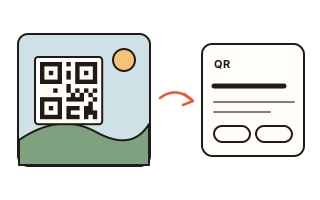
What this tool does
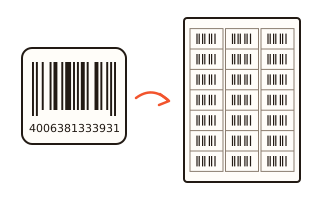
A phone camera reads a QR code instantly, but a QR code inside a photo on your computer, or in a screenshot, is awkward to read. Pick the picture, drop it here or paste a screenshot with Ctrl+V and the codes in it are read straight away. Every code in the picture is found and numbered, and product barcodes (EAN-13 and others), Data Matrix and PDF417 are read too.
When the text is a web address, the site it really goes to is shown in large letters before anything opens. Shortened links, addresses without a secure connection, bare IP numbers and addresses that put a well-known company name in front of another site are pointed out. An address opens only when you press its button.
A Wi-Fi code shows the network name and password as text, with copy buttons, which helps when the computer joining the network is not a phone. Contact cards, phone numbers, e-mails, map points and two-step sign-in codes are laid out so you can tell what they are.
How to use it
- Press “Choose pictures” or drop pictures on the box. For a QR code on your screen, take a screenshot to the clipboard (Windows: Win+Shift+S, Mac: ⌘+Control+Shift+4) and press Ctrl+V (⌘+V on a Mac) on this page.
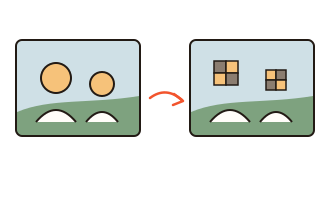
- Each code found gets a number on the picture, and what it holds is listed below under the same number.
- For a web address, check the site name under “Where it goes” first, then press “Open this address” if it is the one you expect. For Wi-Fi, copy the password and paste it into the connection window.
- To keep the contents of several codes, press “Copy all” and paste them into a note or a spreadsheet. Two-step sign-in codes are left out.
Watch out for QR phishing
Nobody can read a QR code by eye, so fake stickers are put over real ones, and QR pictures are sent by text or e-mail to lead people to fake sites. The usual story is a parking fine, a parcel, a bank or a public office, followed by a page that asks for a login, card number or verification code, or asks you to install an app. Do not install it. If you have already entered a card number or a code, call your card company or bank straight away.
That is why this page shows an address instead of opening it. Check that the name in large letters under “Where it goes” (the end of the part before the first /, for example paypal.com or gov.uk) belongs to the company or office you expect. In paypal.com.account-check.xyz the well-known name comes first, but the site you would reach is account-check.xyz.
Which pictures read well?
Screenshots, being straight and sharp, read best. Phone photos read too, even slightly tilted, dark or with light and dark swapped. The reader used here read 156 of 160 codes in test pictures made for this site; another common free reader read 76.
A code that is a tiny part of a large photo, out of focus, or hidden by glare may not read. Crop or screenshot just the code, or take the photo again from the front.
What is inside a Wi-Fi QR code?
A Wi-Fi code holds text such as “WIFI:T:WPA;S:name;P:password;;”. A phone joins the network from it directly; a computer usually cannot. This page splits it into the network name (SSID), password and security type, with a button to copy the password.
It is handy for joining a laptop to a café or office network from a photo of their QR code. The password can be hidden on screen if someone is looking over your shoulder.
Your data
The pictures you choose and the screenshots you paste are opened and read inside this browser only. Neither the pictures nor the text read from them are sent anywhere or stored, so they are gone when you close the page. The first read downloads the reading part (a program file) from this site once. Web addresses open only when you press their button, and no map is loaded.
Questions and answers
Can I scan with my camera here?
No — this page does not use the camera. Your phone’s own camera app reads QR codes instantly, so that is quicker. This page is for codes that are hard to point a camera at: pictures on your computer, screenshots and images received in messages. On a phone you can still pick a photo from your gallery.
Are my pictures uploaded?
No. Pictures are opened and read inside this browser. The page downloads its reading part (a program file) from this site once; neither the pictures nor what is read from them are sent anywhere.
How can I tell whether an address is safe?
Look at the site name in large letters under “Where it goes” and check that it belongs to the company or office you know. Shortened links, addresses without https, IP numbers and addresses that put a famous name in front get a warning. No warning does not prove a site is safe, so be wary of any page that asks for personal details or codes.
My picture has several QR codes.
All of them are found, numbered on the picture and listed under the same numbers. “Copy all” copies every one at once.
Do iPhone photos (HEIC) work?
Usually in Safari on iPhone and Mac. Chrome and Edge cannot open HEIC and show a note instead: open the photo on screen and paste a screenshot of it. On an iPhone, Settings › Camera › Formats › Most Compatible makes the camera save JPG from the start.
The text looks garbled.
Some older QR makers store Korean text in the EUC-KR encoding without saying so. Such text is detected and read as Korean, with a note. If it still looks wrong, ask whoever made the code.