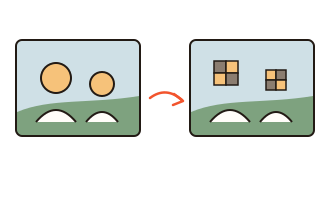
What this tool does
Posting a group photo to a blog, a class chat or a newsletter often means hiding the faces of people who did not agree to be shown. This tool finds the faces in a photo and covers them all in one go. It looks at the photo in overlapping pieces as well as whole, so small faces far in the background are found too.
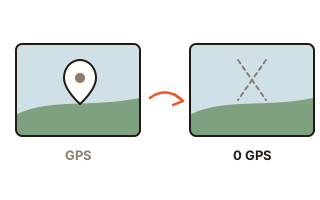
Each found face can be switched on or off, and anything that is not a face — a license plate, a name badge — can be covered by dragging a box over it. The picture keeps its size, and the file is saved without the original's metadata such as the location.
How to use it
- Press 'Choose photos' or drag photos onto the box. With several photos, pick one at a time from the list above the editor.
- Found faces get a frame and are covered at once. Tap a frame to switch its cover off or on.
- Drag on the photo to draw a box over anything else. Drag a box to move it, pull its corner to resize it, press × to delete it.
- Choose the style (pixelate, black bar or blur) and its strength, then press 'Save'.
Covering that cannot be undone
Research has shown more than once that a lightly blurred face can be partly restored or recognized by software. The pixelate and blur styles here keep only the average color of each block, so the eyes, nose and mouth are simply not in the file any more. With small blocks, though, people or software can still guess who it is.
The surest choice is the black bar: one flat color, nothing left. With pixelate, Large blocks split the covered box into six blocks across, which is hard to recognize.
No original hiding inside the covered file
A phone photo may carry a small preview picture and the coordinates of where it was taken. Cover the faces but keep those, and the preview can still show the uncovered faces, or the place can give you away. Here only the covered picture is written to the new file; nothing from the original file's metadata is carried over.
The file comes out in the format it went in: JPG as JPG, PNG as PNG, WebP as WebP. HEIC, which browsers cannot write, is saved as JPG.
When face finding misses
Faces turned fully sideways, faces more than half hidden by a mask or a hand, very small faces far away and faces of people lying down can be missed. Look over the whole photo before saving and draw a box over any face that was not found. Faces are found with BlazeFace, a detection model published by Google, served from this site and run inside your browser.
Your data
Photos are opened and covered inside this browser only. Face finding runs on this device too, so no photo goes to any server. Only your style, block size, shape and bar color are remembered in this browser.
Questions and answers
Can someone un-pixelate the saved photo?
The pixelate and blur styles keep only one average color per block, so what was inside a covered block is not in the file. With small blocks, people or software can still guess who it is, so use Large blocks or the black bar.
Can I cover things that are not faces?
Yes. Drag a box over a license plate, a name badge, an address or text on a screen, and it is covered in the same style.
Can I do many photos at once?
Yes. Faces are found in every photo you add, each photo's boxes can be adjusted on their own, and 'Save all' downloads one ZIP file.
Does the photo get smaller or lose quality?
Width and height stay the same. A JPG is compressed once more when saved, which is hard to see. Put in a PNG to get a PNG back with no loss at all.
My iPhone HEIC photo does not open.
Browsers other than Safari cannot open HEIC. Use Safari on the iPhone, or set Settings › Camera › Formats to Most Compatible so new photos are JPG.