What this tool does
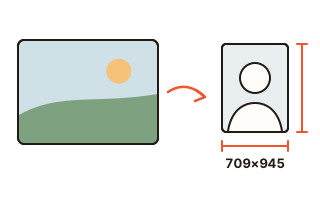
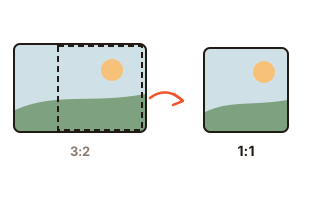
Every place you post wants a different shape: a shop's main product photo is usually square, an Instagram portrait post is 4:5 and a YouTube thumbnail is 16:9. This tool fits a frame of the chosen ratio onto the photo and saves only what is inside it as a new file.
Move the frame and resize it with a finger or the mouse, or type its top-left corner and size in pixels to place it exactly. Several photos get the same ratio, centered, so you only nudge each frame and save them all together.
How to use it
- Press 'Choose photos' and pick the photos to crop. Several at once is fine.
- Choose a ratio such as 1:1, 4:5 or 16:9, or a use such as a square shop photo, from the buttons on top.
- Drag the frame to move it and pull a corner to resize it. Type pixel values below when you need exact numbers.
- Press 'Save' to download the cropped photo. Several photos come as one ZIP file.
Common ratios and sizes
Online shops mostly use square (1:1) main photos, often at 1000×1000 pixels. Instagram portrait posts are 4:5 (1080×1350) and YouTube thumbnails 16:9 (1280×720). The use buttons set both the ratio and the saved size.
To set only the shape and keep every pixel, choose a plain ratio button such as 1:1 or 3:4. The cropped part is then saved at its original pixels, which gives the best quality.
Re-saving without extra quality loss
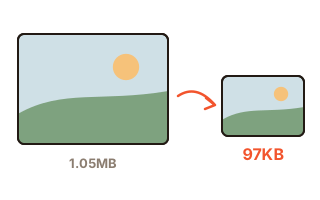
A JPG is compressed again every time it is saved. So this tool reads the original photo's quality setting from the table inside the file and saves the crop at the same quality: a photo saved at 90 comes out at 90, one at 80 stays at 80, so it neither balloons nor turns mushy.
PNG loses nothing to compression and stays PNG; WebP stays WebP.
Turning, flipping and the photo's details
Turn a sideways photo upright with the rotate buttons before cropping, and mirror a selfie back left to right. Camera and date details stay in the file; the location and the small preview picture — which would still show the uncropped photo — are removed.
Your data
Photos are opened and cropped inside this browser only and never sent to a server. Only the last ratio you chose is remembered in this browser.
Questions and answers
What ratio for a profile picture?
Profile pictures are usually shown square or cut into a rounded shape, so crop 1:1 with the face in the middle. 'Profile 640×640' saves a 640-pixel square.
Can I crop many photos to the same size?
Yes. Choose a use button such as Shop 1000×1000 and every photo gets the same ratio and is saved at the same pixel size. Just move each frame where you want it.
Can I crop to exact pixels?
With the ratio set to Free, type the frame's left and top position and its width and height in pixels. Numbers in the saved size boxes resize the crop to that size when saving.
Can I crop iPhone HEIC photos?
Safari opens HEIC, so you can crop there; the result is saved as JPG. Other browsers cannot open HEIC.
Is my original changed?
No. The original stays as it is and a new file with the size in its name is downloaded, for example photo-1000x1000.jpg.