What this tool does
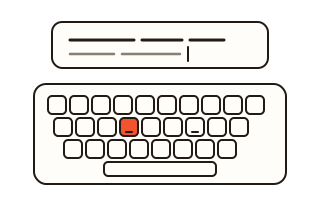
Use this keyboard tester when you have just bought a keyboard, new or second-hand, or when a key sometimes misses or types its letter twice. Every key you press lights up on the keyboard map while it is down and stays green once it has registered, so the keys you have not tried yet stand out at a glance.
Pick the map that matches your keyboard: full size, tenkeyless or a laptop-style board, with the US or the Korean layout. The tester counts how many of its keys you have checked and names the ones left. It also measures how many keys register when you hold several at once, and spots chatter, where a single press arrives twice a few milliseconds apart.
If you write code, the last key shows its key, code and keyCode values, its location (left, right or numpad) and how long it was held, like a key code lookup that also keeps a running log. When you are done, save the result as a PNG picture to show a buyer or a repair shop.
How to use it
- Choose the layout that matches your keyboard: full size, tenkeyless or laptop, US or Korean.
- Press Start or click the board with the keyboard map so it takes your key presses.
- Press every key once, hold several keys together, and press a suspect key slowly many times.
- Hold Esc for a second or click outside the board, then save the result picture as a PNG file.
How chatter is caught
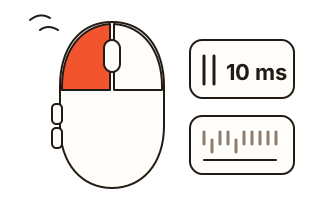
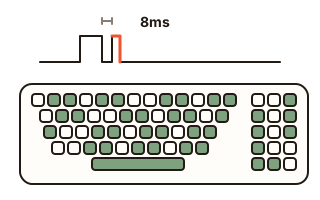
When a key switch wears out or gets dirty, one press can reach the computer twice in very quick succession. That is called chatter. The tester measures the time between letting go of a key and the next press of the same key; when it is shorter than the threshold (50 ms to start with), the press is counted as suspected chatter and the key gets a coral outline with the count.
Tapping a key twice on purpose can trip it too, so press a suspect key slowly and deliberately, many times, and see whether the count keeps climbing. The log shows how many milliseconds passed before each repeat press, and changing the threshold recounts the presses you have already made.
Rollover and ghosting
Games and fast typing mean holding several keys at once. The tester shows how many keys are down right now, the most it has seen down together and which keys they were, so you can find out how many your keyboard really sends.
Because of the wiring inside the keyboard, some combinations stop registering more keys (blocking) or report a key you never pressed (ghosting). The basic USB keyboard report, the boot protocol, carries up to six ordinary keys at a time, so some keyboards stop at six. A keyboard sold as N-key rollover should go beyond that.
Keys a browser cannot see
The Fn key changes what other keys do inside the keyboard itself and is never sent to the computer, so no web page can tell it was pressed. That is why the laptop map draws it dashed and leaves it out of the count.
Keys that Windows or the browser use first, such as the Windows key, Alt+Tab or Ctrl+W, either never reach the page or do something else first. In Chrome and Edge the full screen button lets some of them through to the board. Media and volume keys may be taken by the system; when they do arrive, they are listed as keys not on the map.
Your data
Key presses are counted inside this page and never sent to a server. The log is not stored and goes when you close the page; only the layout and the chatter threshold you picked are kept in this browser for next time.
Questions and answers
A key does not light up. What should I check?
First make sure the board is taking key presses: its outline turns dark when it is. Clicking outside the board stops it. If one key still stays dark, press it several times with different force, then try another USB port or another computer to see whether the keyboard is at fault.
Which chatter threshold should I use?
Start with 50 ms. If it flags too much, lower it to 30 ms to see only the shortest double presses; if a key seems faulty but nothing shows, raise it to 80 or 120 ms. Changing it recounts the presses you have already made.
Does it work on a Mac?
Yes. On a Mac keyboard Command and Option sit where Windows and Alt are, so the map labels them cmd and opt. A Mac does not report other keys released while Command is held, so when Command goes up the tester treats every held key as released.
Can I use it to find JavaScript key codes?
Yes. The last key panel shows the event's key, code and keyCode values and its location, and the log lists every press and release with timing. Keys outside the map, such as media keys or F13, are listed by name.
Is what I type sent anywhere?
No. The page only shows the keys on screen and sends nothing to a server. The result picture is drawn in your browser and saved straight to your device.