What this tool does
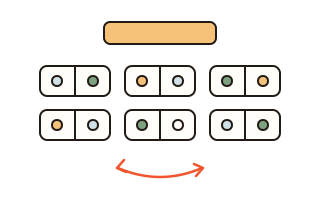
This seating chart maker seats a class in rows of desks — single desks, desks for two or for three — or guests around tables. Paste the names, choose the number of desk columns and rows, and press the button: everyone gets a seat at random. When there are more seats than people, the front rows fill first so the empty desks are at the back, and you can mark desks that are not used.
You can add the rules teachers care about. Keep-apart rules stop two pupils from sitting together or right in front of or behind each other, and keep-together rules seat a pair at one desk. Pupils who need to sit near the front — for their eyesight, say — are always placed in the first rows you choose. “Avoid last time's seats and partners” avoids, as far as the rules and pinned seats allow, giving anyone the same seat or desk partner as in the previous chart (charts before that are not checked).
For events, switch to tables: round tables, long tables with seats on both sides, or a head table in a row. Each table has its own name, shape and number of seats, and guests are spread evenly over the tables.
How to use it
- Type the names in step 1, one per line, or paste a class list from a spreadsheet. To use numbers only, enter the class size under “Numbers only”.
- In step 2 set up the room: the number of desk columns and rows with the minus and plus buttons, and the desk size. For groups or events, press Group tables, Wedding or Dinner and adjust the tables.
- In step 3 add any rules: people to keep apart, people to seat together, pupils who need the front rows, and whether to avoid last time's seats and partners.
- Press “Make the seating chart”. Press it again for a new chart, click two seats to swap them, or click a seat and “Pin to this seat” to keep someone there next time.
- Turn on “Seen from the teacher's desk” to flip the chart, then print it, save it as an image or CSV, or copy the find-your-seat list.
A chart that looks like the classroom
The classroom is drawn as columns of desks with the board and the teacher's desk at the front. From the pupils' side the front is at the top; “Seen from the teacher's desk” turns the chart around — top to bottom and left to right — so it matches what you see standing at the front, which helps with taking the register. Charts print on landscape A4, with an alphabetical find-your-seat list on the next page if you want it.
Front-row pupils only get seats in the rows you choose; if there are more of them than front seats, the page says how many seats are missing instead of quietly moving someone back. Keep-apart treats the desk partner and the seats directly in front and behind as “next to”; keep-together seats people at the same desk.
Avoiding last time's seats
Each chart stays in this browser. Next time, “Make it again” avoids the previous chart's seats and desk partners as far as the rules, pinned seats and free seats allow. Hand changes are remembered, and pinned pupils keep their seats. The draw uses your browser's cryptographic random numbers: with no rules every seat is equally likely for everyone; with rules, many random charts are tried and the one that keeps every rule and overlaps least with last time is shown.
Groups, round tables and events
Group tables start with six tables of four for group work, Wedding with a head table and five round tables of eight, and Dinner with two long tables of twelve. Rename tables, change their shape and size as you like; keep-apart means not at the same table, together means at the same table. The printed find-your-seat list is handy by the door.
Your data
Names and charts are handled only in this browser and never sent to our server. Your list, settings and the last two charts stay in this browser's local storage so the next chart can avoid repeats; “Clear everything in this browser” deletes them at once, and lists under “Saved lists” are deleted there.
Questions and answers
Some pupils need to sit at the front.
Open “People who sit at the front” in step 3, tick them, and choose how many rows count as the front. They will always be seated within those rows.
Can I move people by hand?
Yes. Click one seat and then another to swap the two people; click an empty seat to move there. On a computer you can also drag a name onto a seat.
What about broken or unused desks?
Press “Mark unused desks” and click the desks to leave empty, then press “Done marking”. Nobody will be seated there.
What does “Seen from the teacher's desk” do?
It turns the pupils' view around, top to bottom and left to right, so the chart matches what you see from the front of the room. Use it for the copy on your own desk.
Do I need to save the chart to avoid repeats?
No. Every chart is kept in this browser automatically, and with “Avoid last time's seats and partners” on, the next chart uses it. Another computer, or another browser on the same phone (such as a chat app's built-in one), will not have it, so use the same browser.