What this tool does
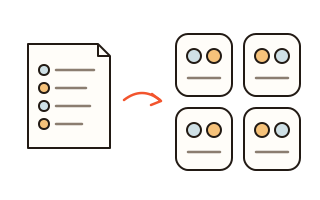
This random team generator splits a class, a sports group, a workshop or a club into teams. Paste or type the names, choose the number of teams or how many people go in each, and press the button. When the numbers do not divide evenly, the leftovers are either spread one per team or put together in a smaller team.
With no rules, the names are shuffled fairly and dealt into the teams, so everyone has the same chance of every team. Add a tag such as a gender, a year group or a department, or a skill level, and the teams are balanced: tags spread across the teams in proportion, and the total skill of each team comes out about the same. Keep-together rules put people in one team; keep-apart rules put them in different ones.
You can paste a class list straight from a spreadsheet: the name column is found by its header or as the first column that is not just numbers, a column with only a few different values becomes the tag, and a column of numbers, stars or high/medium/low becomes the level. There is no need to click through every name.
How to use it
- Type the names in step 1, one per line, or paste a block of spreadsheet cells. Open “Tags, levels and who is absent” to change anyone's tag or level, or to leave out someone who is away today.
- In step 2 choose “By number of teams” or “By people per team” and set the number. A line underneath shows how the split will come out, for example “4 teams · 6 each”.
- Turn on balanced tags, balanced levels, mixing up last time's teams or leaders as needed, and add keep-together or keep-apart rules.
- Press “Make teams”. Not happy? “Shuffle again” makes a new split, and “Previous” takes you back to earlier ones.
- Fix things by hand: click two names to swap them, or click a name and then “Move to Team 2” (it appears in place of another team's name). Then show the teams full screen, or copy, save as an image or CSV, or print them.
How the balancing works
Tags are spread so that each team gets close to its fair share. Twelve people, six boys and six girls, in three teams gives every team two of each. A tag does not have to be a gender — use anything you want mixed, such as a year group, a department or a home class.
Levels can be numbers from 1 to 5, stars or high/medium/low. The generator tries many random splits, keeps the rules, and picks the one where the teams' level totals are closest; each team card shows its tag counts and level total so you can check at a glance.
Rules and mixing it up
A keep-apart rule puts two or more people in different teams; keep-together puts them in the same one, such as a pupil and their helper. If the rules cannot all be kept, the page says the teams cannot be made instead of quietly breaking one. “Mix up who was together last time” makes people who were together in the previous split less likely to meet again — handy when you make new groups every week.
Presenting and saving
“Big screen” opens the teams in large type for a classroom display or projector, with a shuffle button right there. Copy gives a tidy text for a group chat, and on a phone Send opens the share sheet. The CSV opens in Excel with accents and non-Latin names intact. Your list, settings and the last 20 results stay in this browser, and saved lists also open in the seating chart and the Secret Santa generator.
Your data
Names and results are handled only in this browser and never sent to our server. Your list, settings and the last 20 results stay in this browser's local storage so you can carry on next time; they are not shared with other devices. “Clear everything in this browser” deletes them at once; lists under “Saved lists” are deleted there.
Questions and answers
Are the teams really random?
Yes. Without rules or balancing, the names are shuffled with your browser's cryptographic random numbers and dealt out, so everyone has the same chance of each team. With rules or balancing on, many random splits are tried and the most even one that keeps the rules is shown.
What if the numbers don't divide evenly?
By number of teams, the extra people go to randomly chosen teams, so team sizes never differ by more than one. By people per team, you choose whether the leftovers join other teams or form a smaller team of their own.
How do I leave out someone who is absent?
Open “Tags, levels and who is absent” and tick “Absent” next to their name. They stay in your list and are only left out of this split.
Can I paste a list from Excel or Google Sheets?
Yes. Copy the number, name, gender and level columns together and paste them: the name column is found automatically, a column with a few values becomes the tag and a column of numbers or high/medium/low becomes the level.
Can I change the teams by hand?
Yes. Click a name and then a name in another team to swap them, or click a name and then “Move to Team 2” (it appears in place of another team's name). Hand edits are kept in the history too.