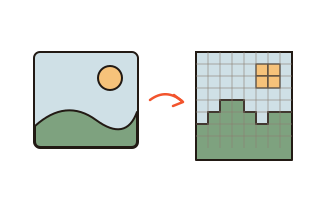
What this tool does
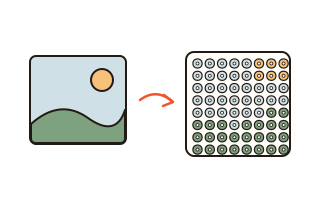
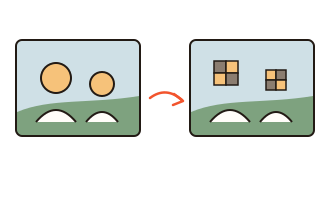
This tool turns a photo or drawing into pixel art made of square cells. Choose a width from 16 to 128 squares; the height follows the photo's shape, and each square gets the average color of the part of the photo it covers. The average is taken in linear light, so a checkerboard of black and white comes out as the gray your eye sees, not a muddy dark one.
Reduce the picture to anywhere from 2 to 64 colors. Besides automatic colors chosen for your photo, there are black and white, four grays, and the four greens of an old handheld game screen. Colors are chosen by how different they look to the eye.
Dithering mimics smooth gradients with few colors; lone-square cleanup replaces single stray squares with the color around them; and clearing the background makes the color that fills the photo's edges transparent, so the result works as a sticker or a game sprite. Everything happens inside this browser.
How to use it
- Press "Choose photo" or drop a photo on the box. You can also paste a screenshot with Ctrl+V, or try the sample picture first.
- Pick the width in squares. Fewer squares look chunky and retro; more look closer to the photo.
- Pick the number of colors and a palette, and switch dithering, lone-square cleanup or background clearing on or off.
- Check the preview and the color list, then press Save PNG — either large (about 1,000 pixels wide) or original size, one pixel per square.
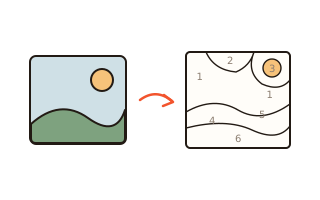
- To color it in or copy it by hand, press Save pattern PDF: every square carries a symbol and the first page lists each symbol's color and count.
Choosing the width and colors
For a photo with faces, 48 to 64 squares and 16 to 32 colors usually keep people recognizable. Simple pictures such as icons and characters look clean at 16 to 32 squares and around 8 colors. More squares get closer to the photo but are harder to color in by hand or build with beads.
Reducing colors groups similar ones together. We measured the color matching against a well-known open-source quantization library on the same pictures: the average color error was about the same or slightly lower, in a small fraction of the time.
Print it as a pixel art pattern
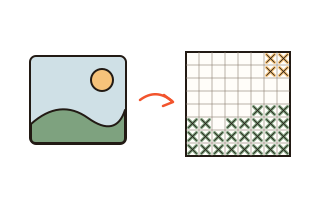
The pattern PDF is a printable chart with color and a symbol in every square, a bold line every ten squares and row and column numbers along the edges, so you can copy it onto graph paper or fill the squares with pencils and markers. A pattern bigger than one page is split across pages, and the first page shows where each page belongs.
For a chart matched to real fuse bead colors and pegboards, use the bead pattern maker; for a cross-stitch chart with thread amounts and fabric size, use the cross-stitch pattern maker.
PNG size and transparent background
The large PNG draws each square as a sharp block of pixels, so edges stay crisp when you zoom in. The original-size PNG uses one pixel per square, which is what games and apps expect for sprites.
With the background cleared, the empty squares are transparent in the PNG, so the art sits cleanly on any slide or chat background.
Your data
Your photo is read and converted inside this browser and is never sent anywhere. Only your width and color settings are remembered in this browser for next time.
Questions and answers
Is my photo uploaded?
No. Reading the photo, making the squares and building the PNG or PDF all happen inside your browser.
Does it work with iPhone photos (HEIC)?
Yes, if your browser can read HEIC (Safari usually can). If not, export the photo as JPG or paste a screenshot instead.
The colors look too flat.
Raise the number of colors to 32 or 64, or turn on dithering. More squares across also bring back small details.
Can I use it for beads or cross-stitch?
The pattern PDF works, but the bead pattern maker matches real bead colors and pegboard sizes, and the cross-stitch pattern maker adds thread amounts and fabric size.