What this tool does
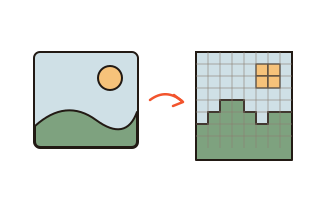
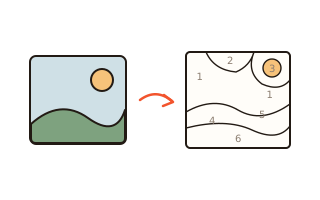
This tool turns a photo into a paint-by-numbers page. The photo is smoothed, reduced to between 12 and 30 colors and split into connected areas of one color, whose borders are drawn as lines. Each area gets its color number at the point farthest from its border, sized to fit the area.
Areas too small or too thin for a brush are merged into the neighbor they share the longest border with. Large areas make it easier for children and first-timers; detailed areas look closer to the photo.
The PDF's first page is the numbered line drawing; the second holds a swatch, name and color code for every number, plus the finished look. The numbers are real text, so they stay sharp at any size. The color list also gives the share of the picture each color covers, so you know which paints to mix more of. Lines and numbers can be printed light so they show less through the paint. Everything happens inside this browser.
How to use it
- Press "Choose photo" or drop a photo on the box, or try the sample photo first.
- Pick the number of colors and the area size. For a first try, 18 colors with medium or large areas work well.
- Switch the preview between the numbered page and the finished picture.
- Check the paper (A4, A3 or Letter) and orientation, then press Save PDF.
- Mix paints to match the color key on the second page and fill the areas number by number.
Choosing colors and area size
More colors look closer to the photo but mean more paints to mix. Portraits work well with 18 to 24 colors; landscapes and flowers with clear blocks of color are fine with 12.
Area size sets the smallest area. Large gives fewer areas and a quicker finish; detailed gives many small areas for a more careful piece. Printing on A3 makes the same page twice as large, leaving more room for numbers and brushes.
Matching your paints
The swatches and color codes in the key are screen colors. Mix acrylics to match them. Printed colors vary a little between printers.
If the numbers look too small, choose larger areas or a larger sheet. Narrow areas get smaller numbers.
Related pattern tools
For a page with lines only and no numbers, use the photo to coloring page tool; for embroidery, use the cross-stitch pattern maker.
Your data
Your photo is read and converted inside this browser and is never sent anywhere. Only your settings are remembered in this browser.
Questions and answers
There are too many tiny areas.
Choose large areas and fewer colors. For photos with busy backgrounds, crop to the face or subject first; the areas become much simpler.
Can I transfer it to canvas?
Print the PDF at the size you want and trace it onto canvas with transfer paper or against a window. A3 prints are handy for small canvases.
Is my photo uploaded?
No. Splitting the areas, numbering them and building the PDF all happen inside your browser.
The printed colors look different from the screen.
Printers vary. Mix your paints by the color codes in the key and use the finished picture as a guide.