What this tool does
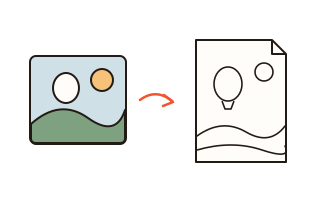
This tool traces the outlines in a photo to make a coloring page. Textured areas such as skin and grass are smoothed first, and lines are drawn on the dark side of each edge, so the result looks hand-drawn rather than scribbled. Specks and pieces too small to color are removed.
There are two styles. Outlines keep the shapes of the photo as a line drawing. The Big areas style splits the photo into a few color regions and draws their borders, so every area is closed. Closed areas make it clear where to color, which helps children who are new to coloring and anyone whose hands are less steady.
Pick from four line weights, 0.35 mm to 1.5 mm, and three levels of detail and speck removal. The saved page fills one A4 or US Letter sheet keeping the photo's proportions, turning sideways for landscape photos. Lines keep their soft gray edges so they print smoothly, without jagged steps. No AI image generator is used: the page comes from your own photo.
How to use it
- Press "Choose photo" or drop a photo on the box, or try the sample photo first.
- Pick a style: Outlines to keep the look of the photo, Big areas to make coloring easy.
- Change the detail, line weight and speck removal and watch the preview. For young children, Less detail and Bold lines work best.
- Check the paper and orientation, then press Save PDF. Save PNG gives a picture file instead.
- For more sheets, raise the number of copies in the print dialog.
Which photos work best
Photos where a face or object fills the frame against a plain background make the cleanest pages. Busy backgrounds like trees, or big groups, produce many lines; choose Less detail and Strong speck removal to keep only the bold ones.
Strong light from one side draws lines along shadows as well. Evenly lit, front-facing photos work best, and brightening a dark photo before using it makes the lines clearer.
For young children and older adults
Coloring exercises hands and eyes together, which is why care homes and preschools use it. The Big areas style with Less detail and Bold lines gives wide areas and clear borders that are easy to fill with crayons or chunky pencils.
Pages made from family photos, grandchildren or a pet give something to talk about while coloring. The page is made inside this browser, so the family photo is not posted anywhere.
Want numbers in the areas?
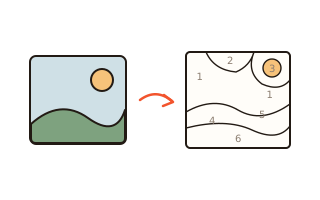
For a page with a color number in every area, use the paint by numbers maker. It splits the photo the same way, numbers each area, and adds a second page with the numbered color key and the finished picture.
Your data
Your photo is read and converted inside this browser and is never sent anywhere. Only your settings are remembered in this browser.
Questions and answers
There are too many messy lines.
Choose Less detail and Strong speck removal. For photos with busy backgrounds, the Big areas style is often cleaner.
The face is hard to make out.
Raise the detail to More and choose thin lines. If the face is small in the photo, crop closer to the face first.
Is my photo uploaded?
No. Tracing the lines and building the PDF both happen inside your browser, so family photos stay with you.
Can it draw a picture from a description?
No. This tool traces lines from your own photo; it does not generate pictures from text.