What this tool does
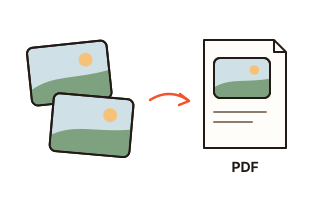
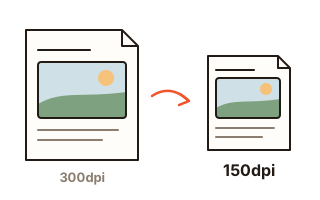
Usually, a PDF is big because of its pictures. A scanned document is one large picture per page, and phone photos pasted into a report weigh several megabytes each. This tool finds the pictures inside the PDF, lowers their resolution to the size they are actually shown on the page, and compresses them again. An A4 page scanned at 300 dpi reads just as well at 150 dpi on screen and on paper, so the file shrinks a lot while reading it feels the same.
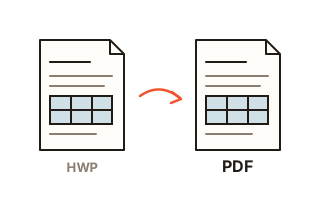
Text, table lines, shapes and fonts are left alone. You can still select and search the text afterwards, and links, bookmarks and form fields stay where they were. Charts and screenshots with only a few flat colours would smear as JPEG, so they are kept as they are.
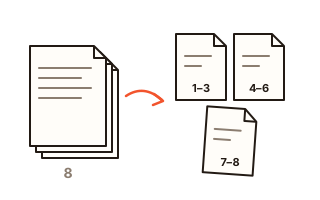
If the place you are sending to says "10 MB max", choose "Target size" and type that number: the tool picks the sharpest quality that lands under it. If the PDF cannot get under the limit as one file, it is split into page ranges that each fit.
How to use it
- Click "Choose PDF" or drop PDFs on the box. Several at once is fine.
- Under "By quality" pick Sharp, Balanced or Small — or choose "Target size" and type the limit from the upload form (for example 10 MB).
- Click "Compress PDF". Pictures are compressed one after another; when it is done you see the old and new size and, if pictures changed, a before/after crop of the largest one.
- Click "Download". Several results or split parts can be saved as one ZIP.
How it compresses
For each picture the tool measures the smallest size it is shown at and works out its resolution there. Sharp and Balanced aim at 150 dpi (Sharp at higher quality), Small at 100 dpi; pictures already below that are never enlarged. Compression uses MozJPEG, and greyscale scans are stored as single-channel greyscale JPEG, which is smaller still.
A picture is replaced only when the new one is smaller, and if the finished file is not smaller than the original, you get the original back. So the result is never bigger than what you put in, and an already well-compressed PDF comes back with a note saying so.
Target size and splitting
Whether "10 MB" in an upload form means 10,000,000 or 10,485,760 bytes depends on the site. The tool aims under the smaller one, 10,000,000 bytes, so the file passes either way. Of ten levels from 220 dpi down to 60 dpi, it picks the sharpest that fits.
A PDF that is mostly text barely shrinks, however the pictures are treated. Then it is split in page order so that every file fits under the target (for example pages 1–12 and 13–25): as few parts as possible, at the sharpest quality that keeps that number. If it would take more than 10 parts, or one page alone is over the target, you get the smallest single file instead.
Why no upload matters here
The PDFs people need to shrink are often contracts, ID copies or transcripts — documents you would rather not hand to a stranger's server. This tool works only inside your browser, so the content never leaves your device. There is no daily limit, and file size is limited only by your device's memory.
Your data
PDFs are read and compressed inside this browser tab and never uploaded. The only thing fetched from this site is the compression engine, once. The browser remembers your settings only; the PDFs and results are gone when you close or reload the page.
Questions and answers
How do I get a PDF under 10 MB?
Choose "Target size", pick 10 MB, and click "Compress PDF". The tool finds the sharpest quality under 10,000,000 bytes; if a single file cannot get there, it splits the PDF into parts that are each under 10 MB.
Will the text get blurry?
In a PDF that holds real text, the text does not change at all — only pictures are recompressed. In a scanned PDF the text is part of the picture: Balanced (150 dpi) reads comfortably on screen and on paper, Small (100 dpi) is fine for reading on screen. The side-by-side on the result lets you check for yourself.
Why does my PDF hardly get smaller?
PDFs that are mostly text and lines, like many saved straight from Word, have few pictures to shrink and lose only a few percent. Some picture types (CMYK, JPEG 2000, fax-style black-and-white) are also kept as they are. The tool says so, and with a target size set it splits the file to get each part under the limit.
Are links, bookmarks and form fields kept?
When the PDF stays one file only the pictures change, so links, bookmarks, form fields and fonts are all kept. Split parts keep their pages' content, but the document's bookmarks, form-field behaviour and links to pages that went to another part may not survive.
Does it work on password-protected PDFs?
PDFs that ask for a password or carry editing restrictions are not compressed. Remove the password first, then add the PDF again.