What this tool does
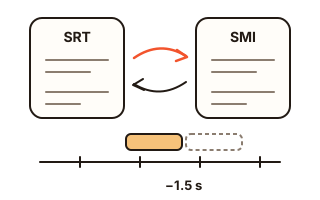
SRT and SMI are two plain-text formats for video subtitles. SRT is read by nearly every video player and editor and is what you upload with a video to sites like YouTube; SMI (SAMI) has long been common for Korean subtitles. Add either one and the tool recognizes it automatically, then converts it to the other format or keeps the same format and only fixes the timing.
If the subtitles are 1.5 seconds late, choose 'earlier' and type 1.5. There is no minus sign to type, so a phone's number pad is all you need, and buttons move the timing half a second at a time. Before you save, the first three subtitles and the last one show their old and new start times, so a shift in the wrong direction is obvious at a glance.
Not sure how far to move them? Note when one line is actually spoken in the video and when its subtitle appears now; the tool works out the difference and fills it in with one button. Subtitles that start in sync but drift further off towards the end were usually timed for a video with a different frame rate, and 'More options' can stretch all the timings to match, choosing between 23.976, 24 and 25 fps.
How to use it
- Press 'Open file' and pick a .srt or .smi file, or paste the subtitle text into the box. On a computer you can also drop the file onto the box. The line under the box says how many subtitles were read.
- Choose 'To SRT' or 'To SMI'. At first the other format is preselected; after that, your last choice is. Choosing the same format keeps it and only moves the times.
- If the subtitles come after the speech, choose 'earlier'; if they come before it, choose 'later'. Type the seconds (decimals such as 1.5 are fine) or nudge with the '0.5 s earlier' and '0.5 s later' buttons.
- Check the preview, then press the save button. The file keeps the name of the file you opened, with the extension of the format you chose (.srt or .smi); pasted text is saved as subtitles.srt or subtitles.smi. Open the next file right after and your shift, speed fix and encoding choice carry over, which helps when fixing several episodes in a row.
How SRT and SMI differ
An SRT file is a list of numbered blocks: a start and end time such as 00:01:23,450 (hours, minutes, seconds, milliseconds), the text, and a blank line before the next block. Because it is so simple, TVs, phone players, editing apps and video sites almost all read it.
SMI, or SAMI, looks like a small web page. Each subtitle starts at a SYNC tag whose Start value is a plain count of milliseconds, such as SYNC Start=83450. There is no end time: a line stays on screen until the next SYNC, so a SYNC holding only a non-breaking space clears it. One SMI file can also carry several languages, marked with classes such as KRCC for Korean and ENCC for English.
What changes during conversion
SRT to SMI writes a complete SAMI file with a HEAD and STYLE section, and labels the language KRCC when the text contains Hangul, ENCC otherwise. Where two or more subtitles overlap, they stay on screen together, so the earlier one is not cut short. Italic, bold, underline and font color tags carry over; position codes such as {\an8} are removed, because SMI players would show them as text, and the tool says how many. Subtitles whose end time is not after their start have no length, so they are left out of the SMI, and the tool says that too.
SMI to SRT ends each subtitle at the next SYNC of the same language. If the last subtitle has no blank SYNC after it, its end is unknown, so it ends two seconds after it starts. Character references like become ordinary characters; italic, bold, underline and font color stay, but font sizes and positions from the STYLE section are dropped because SRT has no place for them. From a multi-language SMI you pick one language for the SRT.
SMI to SMI changes only the SYNC times and keeps every language and the STYLE as they were. If the HEAD names a charset, that one line is updated to match the encoding you save in. SRT to SRT keeps the text and rewrites the times and numbers.
Getting the timing right
Pick one clear line, such as the first words spoken, and compare when you hear it with when its subtitle appears. Open the 'Not sure how much?' helper, type both times, and it says how many seconds early or late the subtitles are; 'Move by this much' fills in the direction and the seconds. Subtitles that would move before the start of the video are placed at 0 seconds and the tool tells you how many; any whose end also falls before 0 will not appear at all.
If the start is fine but the gap grows towards the end, a constant shift cannot fix it. Usually the subtitles were made for a version with a different frame rate, such as a European TV or DVD release at 25 fps versus a North American or online release at 23.976 fps. Under 'More options', choose the frame rate the subtitles were made for and the one your video plays at (23.976, 24 or 25): all the timings are scaled by that ratio first, then moved by the shift above.
When letters come out garbled
Files are read as UTF-8 first; if that does not fit, as the older Korean encoding EUC-KR (CP949), and failing that as Western Windows-1252. When a file was read in an older encoding, a line under the box says which one. A file with only a few broken bytes keeps its encoding, and the line says how many characters could not be read.
Saved files are UTF-8 with a byte order mark (BOM) and Windows line endings by default, which helps Windows programs and many players show non-English letters correctly. For devices that only read EUC-KR, such as older TVs playing from a USB stick, 'More options' can save in the old Korean encoding (EUC-KR / CP949) instead. Characters it cannot hold become ?, and letters only its CP949 extension has, which an older TV may garble, are counted separately.
Your data
The subtitle text you paste and the files you open are read and changed inside this browser only and are never uploaded. The text and the result are gone when you close or reload the page. Your shift, speed fix and encoding choice carry over to the next file you open on the same visit, but they are not kept for a later visit. The only thing this browser remembers is the last output format you chose (SRT or SMI).
Questions and answers
My subtitles are always 1.5 seconds late. Can I get a fixed SRT?
Yes. Open the SRT file, choose 'To SRT', choose 'earlier', then type 1.5. The preview shows, for example, 00:00:05,000 becoming 00:00:03,500; press 'Save SRT file' and you get the same format with every timestamp 1.5 seconds earlier.
I don't know how many seconds they are off.
Open 'Not sure how much?'. Type when one line is spoken in the video and when its subtitle appears now, as 00:01:23,450 or 1:23.45, and the tool shows the difference; 'Move by this much' fills it in. One button puts the first subtitle's time in for you.
The start is in sync but it gets worse towards the end.
The subtitles were usually timed for a video with a different frame rate. Open 'More options' and pick a pair of 23.976, 24 and 25 fps: if the subtitles fall further behind, pick a pair going to the larger number, such as 23.976 → 25; if they run further ahead, pick one going to the smaller number, such as 25 → 23.976. Use the shift as well if the very first line is off too.
My SMI file has Korean and English in it.
When saving as SRT, a 'Language' picker appears under the box. The language of this page is chosen first (English here), and choosing another exports only that language. Saving as SMI keeps both languages and only moves the times.
When does the last subtitle end after SMI to SRT?
If there is a blank SYNC after it, it ends there. Otherwise the end is unknown, so it ends two seconds after it starts, and a note above the result says so.
Which encoding is the saved file in?
UTF-8 with a byte order mark (BOM) and Windows line endings (CRLF) by default. The BOM helps Windows programs such as Notepad and many players show the letters correctly. If an old TV still shows Korean as garbled text, choose the old Korean encoding (EUC-KR / CP949) under 'More options' and save again; characters it cannot hold, such as emoji, become ? and the tool says how many.
Saving does nothing inside KakaoTalk or another app.
The browser inside KakaoTalk cannot save files that a page creates, and inside other apps such as NAVER it may not work either. Follow the note at the top of the tool to open this page in Chrome or Safari, then try again.
Do I need to sign up or install anything?
No. Open this page, pick a file or paste text, and it works straight away. The subtitles never leave your device.