What this tool does
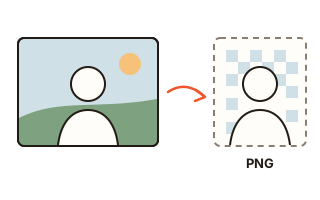
A product shot for an online shop that must sit on white, a profile picture without the messy room behind you, your own signature or your company's stamp for a document: all of them start with cutting the subject out of its background. This tool does that in the browser and saves a transparent PNG, or puts the subject on white, light blue, light grey or any colour you pick.
The result has the same pixel size as the photo you put in. The AI looks at a small copy to decide what the subject is, then the edge is fitted again against the full-size photo, so hair and fine outlines follow the real picture instead of a blurry enlargement. A large photo stays large; there is no low-resolution preview to pay for.
Everything runs on your own device. Nothing is uploaded, so there is no account, no credit counter and no watermark. The AI files are downloaded once and kept in this browser; later runs do not download them again.
How to use it
- Press 'Choose photos' or drop pictures on the box. A copied picture can be pasted with Ctrl+V, and you can add many at once.
- Choose what to keep: 'People and objects' for almost anything, 'People, fast' for portraits with a much smaller download, or 'Stamp or signature' for ink on paper, which needs no AI at all.
- Pick the background, the file format (PNG, WebP, JPG) and the framing (original size, crop to the subject, square 1:1). Changing these after the cut only rebuilds the picture; the AI does not run again.
- Press 'Remove background'. Each photo shows its progress. Then check the before/after slider, fix any leftovers with 'Touch up' (erase or restore with a brush) and save, one by one or all together as one ZIP file.
Which mode to use
'People and objects' uses BiRefNet_lite, an open model for picking out the main subject of a picture: people, products, pets, food or drawings. It is the most careful of the three, but its first download is large, so start it on Wi-Fi.
'People, fast' uses MODNet, a small model made for portraits. It downloads a fraction of the size and runs quickly, but it is not meant for objects: a mascot or a product may come out in pieces. It suits ID photos and profile pictures.
'Stamp or signature' works without AI. It reads the paper colour area by area, so a phone photo with a shadow across the page still clears, and makes each pixel as opaque as the ink is darker than the paper. The ink can keep its own colour without the paper mixed in, or become solid black or seal red.
Shop images, ID photos and signatures
Marketplaces often ask for a square main image on white. Choose a white background and 'Square 1:1': the product is centred with a small margin around it. Or keep it transparent and place it on your own design later.
For ID photos, choose white, light blue or light grey, or set an exact colour with the colour picker. JPG cannot hold transparency, so a JPG gets the colour you chose, or white when you chose transparent. To place your own signature or stamp on an electronic document that accepts image signatures, save it as a transparent PNG in the stamp and signature mode.
Hard photos and the brush
Glass, smoke, clear plastic and fine hair against a busy background confuse any cut-out model: a bit of background may stay, or hair tips may be cut off. A subject with the same colour as its background also blurs at the edge.
Use 'Touch up' for those spots: erase what should not be there, restore what was cut away, zoom in for small areas and undo one stroke at a time. Brush strokes are applied to the full-resolution result.
What we measured
Fitting the edge again against the full-size photo was measured on drawn pictures with a known true outline: the error dropped by 31% for dark hair against a sky, 10% for light hair against a dark background and 82% along the smooth edge of a mug, so the step stays in.
Taking the old background's colour out of half-transparent edges was measured on the same pictures: dark hair against a sky, placed on white, came out 25% closer in colour to the truth, and 38% closer on light blue. The smooth edge of the mug stayed within one level of 256 on light backgrounds.
On a six-core desktop running on the CPU (Intel integrated graphics, with other work going on), 'People and objects' took 5 to 7 seconds per photo and 'People, fast' 1 to 2 seconds; the first photo takes a few seconds more while the AI gets ready. Times differ a lot between devices, so treat them as a rough guide.
Your data
Photos are processed on this device only and are never uploaded. The first time an AI mode is used, the page downloads ONNX Runtime Web (the engine) from jsDelivr and the model from Hugging Face, keeps them in this browser's storage and uses them only after their size and SHA-256 fingerprint match. The stamp and signature mode downloads nothing but this site's own code. This browser remembers only your mode, background, format, framing and ink choices, and which AI engine was faster here. Open software used: BiRefNet_lite (MIT, ZhengPeng7; 512 export by studioludens), MODNet (Apache-2.0; ONNX export by Xenova), ONNX Runtime Web (MIT, Microsoft).
Questions and answers
Why is the first run slow?
The first run has to download the AI files: about 197 to 209 MB for 'People and objects', depending on the device, and about 20 MB for 'People, fast'. The exact size for this device is shown before you press the button. The files stay in this browser, so later runs start right away. On mobile data, do the first run on Wi-Fi.
Does it work on old computers and phones?
It has been checked in Chrome on Windows. Edge and Whale use the same engine as Chrome. Safari, Firefox and phone browsers have not been checked yet. On older devices or phones without graphics acceleration a photo can take tens of seconds, and with little memory the browser may give up. For portraits, try 'People, fast': its download and memory use are much smaller. The stamp and signature mode downloads no AI files and stays light.
Does it handle hair and glass?
Hair usually comes out well, because the edge is fitted against the full-size photo. Glass, smoke and fine hair on a busy background can leave a little background or lose some tips; fix those with the brush in 'Touch up'.
Can I use the stamp image as an official seal?
No. The tool only makes a picture of a stamp or signature. It is not a registered seal and carries no legal weight of its own. Use it only for your own stamp or signature, or one you are allowed to use, and check first whether the receiver accepts image stamps.
Is there a limit on size or number of photos?
There is no limit on the number of photos; they are processed one after another. One photo can be up to 16,384 pixels on a side and 120 megapixels in total, and the result keeps the photo's own resolution.
Are the AI files downloaded every time?
No. Once downloaded, they stay in this browser and are not downloaded again. Opening this page still needs the internet. Clearing this site's data in the browser also removes the AI files, so they would be downloaded again.